

Installing and Activating Media Cloud Sync
Media Cloud Sync moves your WordPress media to cloud storage (Amazon S3, Google Cloud Storage, DigitalOcean Spaces, Cloudflare R2, or any S3-compatible service) and rewrites media URLs so files are served from the cloud or your CDN.
This guide covers installing the free plugin, adding Media Cloud Sync Pro, and activating your Pro license.
Requirements
| Requirement | Minimum |
|---|---|
| WordPress | 5.9 or later (tested up to 7.1) |
| PHP | 8.1 or later |
| WP-Cron | Enabled, or a server-level cron job (needed for background jobs) |
| Cloud account | One of: AWS, Google Cloud, DigitalOcean, Cloudflare, or an S3-compatible provider |
Multisite is supported. The plugin works independently on each site in the network, so each site connects to its own bucket and keeps its own settings.
Step 1: Install the free plugin
From the WordPress dashboard
- Go to Plugins → Add New Plugin.
- Search for Media Cloud Sync.
- Click Install Now, then Activate.
Or upload the ZIP
- Download the plugin from WordPress.org.
- Go to Plugins → Add New Plugin → Upload Plugin.
- Choose the ZIP file, click Install Now, then Activate.
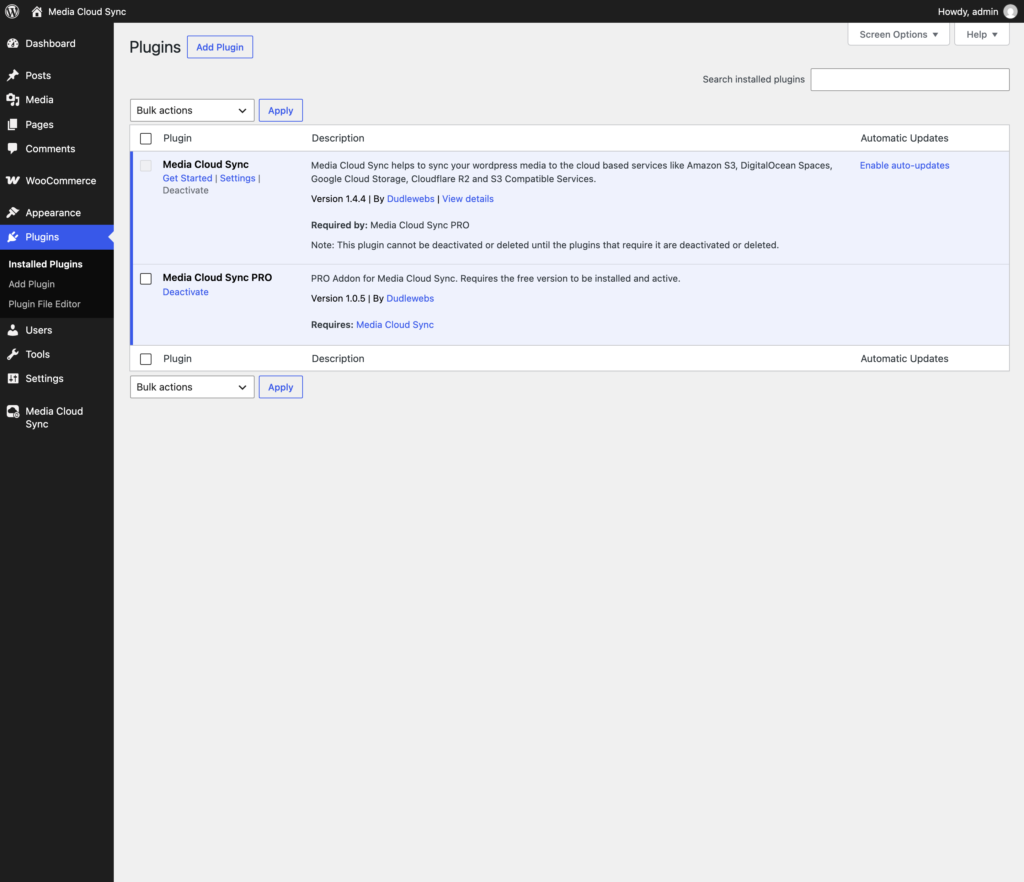
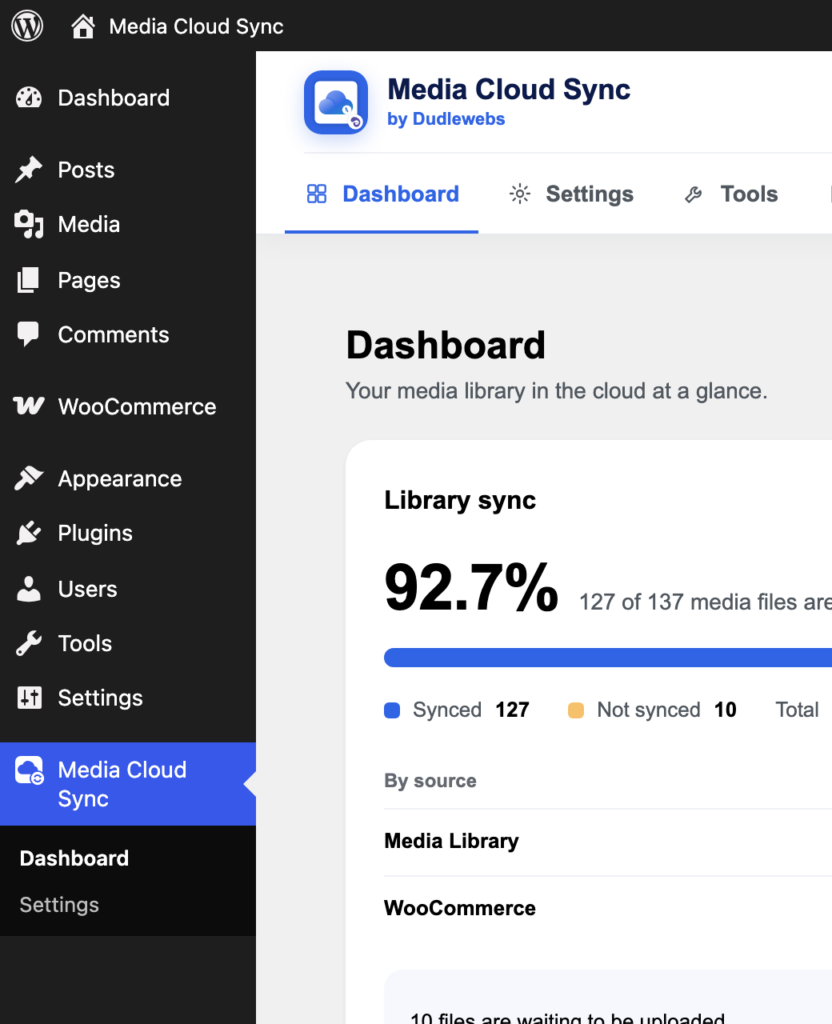
After activation, a Media Cloud Sync menu appears in the left admin sidebar. The Plugins screen also gets a Get Started link that opens the setup wizard directly.
Step 2: Install Media Cloud Sync Pro (optional) PRO
Media Cloud Sync Pro is an add-on. The free plugin must be installed and active first.
- Buy Pro from dudlewebs.com and download the
media-cloud-sync-pro.zipfile from your account. - Go to Plugins → Add New Plugin → Upload Plugin, choose the ZIP, and click Install Now.
- Click Activate.
Step 3: Activate your Pro license PRO
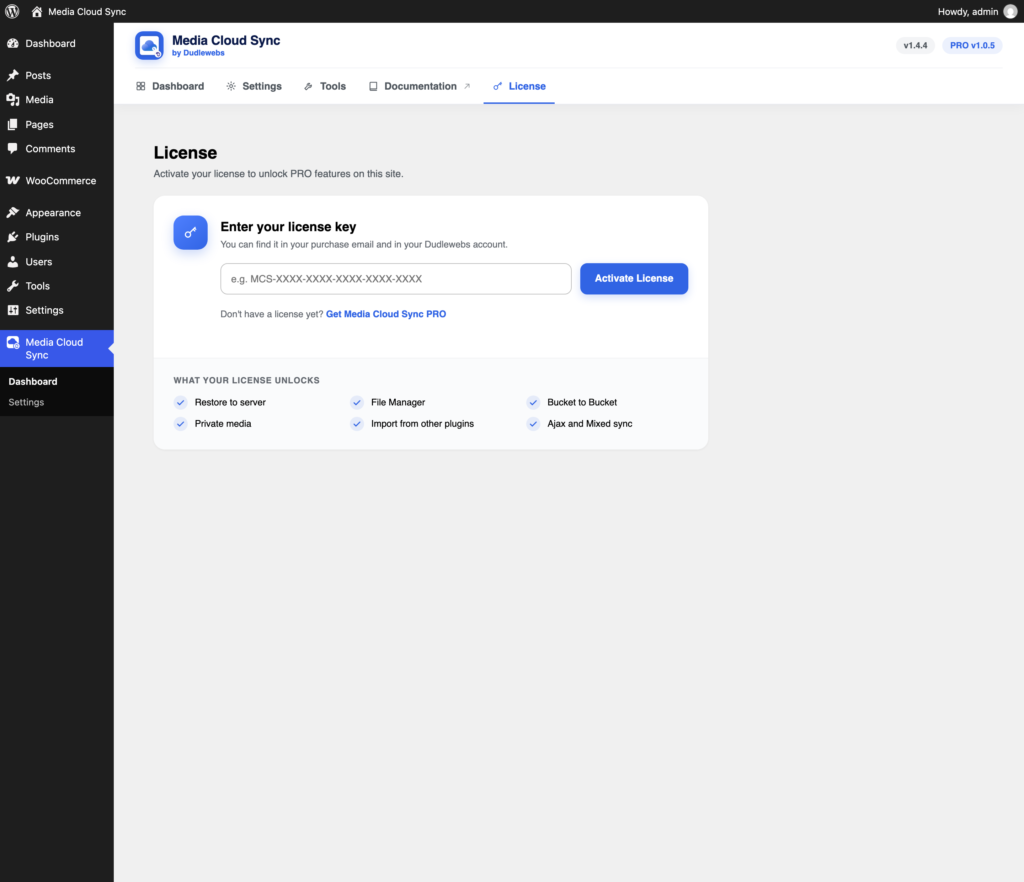
- Open Media Cloud Sync and click License in the plugin’s top menu.
- Paste your license key. You can find it in your purchase email and in your Dudlewebs account.
- Click Activate License.
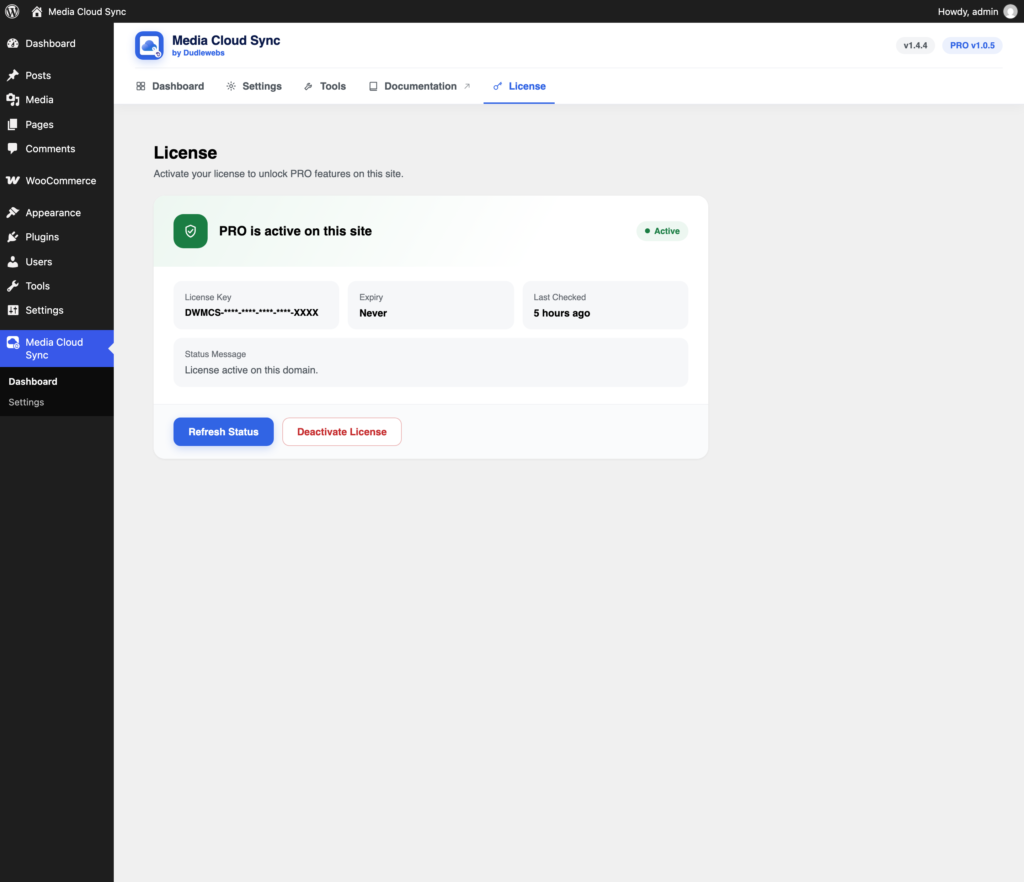
Once activated, the card shows PRO is active on this site with the license key (partly hidden), the expiry date, and when the license was last checked. Click Refresh Status after renewing or upgrading your license. To move the license to another site, click Deactivate License here first.
Note: While Pro is installed but its license isn’t active, the free features keep working. Pro features stay off until you activate the license.
The plugin’s header
The header at the top of every plugin screen has the main menu: Dashboard, Settings, Tools PRO, Documentation, and License PRO. Settings and Tools appear once your storage is connected. The header also shows the free and Pro version numbers, and the progress of any running job.
What’s next?
Connect your cloud storage with the setup wizard: see Connecting Your Cloud Storage (Setup Wizard).