

Repair Synced MediaPRO
An item can be marked as synced while some of its files never reached the bucket, for example after a timeout, or when a size was generated later. Repair Synced Media finds those files and uploads them.
Open it from Tools → Repair Synced Media.

What it checks
Every synced media file in the bucket: the main file, its sizes, the original image, and HEIC or animated GIF files.
- Missing from the bucket: uploaded from your server.
- In neither the bucket nor on your server: listed under Errors.
- Already in the bucket: not uploaded again.
It usually uses one bucket list request per media file.
Running it
- Click Start.
- In the dialog, leave Re-upload every file (full re-sync) off to upload only what’s missing.
- Click Start.
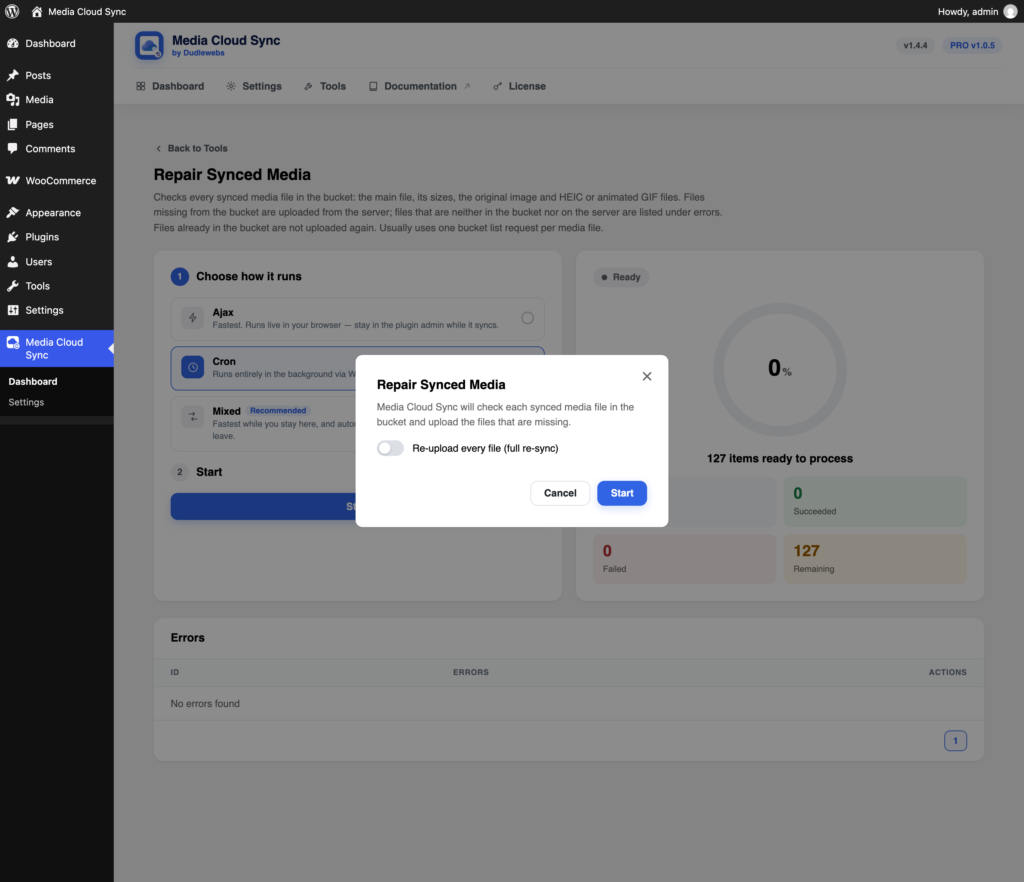
Re-upload every file
With Re-upload every file (full re-sync) on, every file of each item is uploaded again, replacing the cloud copy. It costs more requests and bandwidth, and needs the local files: items without them are reported so you can restore them first.
If your CDN has cached the old files, use CDN Cache Purge.