

Managing Media from the Media LibraryPRO
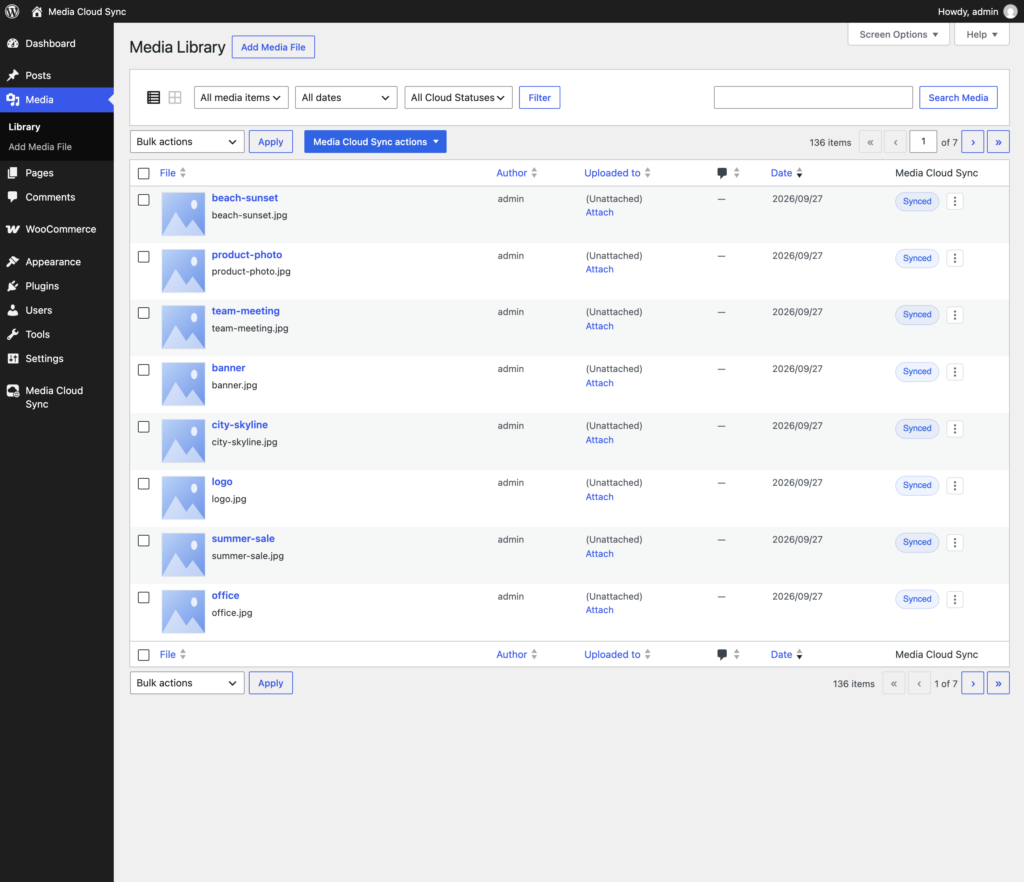
With Media Cloud Sync Pro, you can see and control each item’s cloud status straight from Media → Library, one item at a time or in bulk, without running a full job.
Cloud status at a glance
List view gets a Media Cloud Sync column that shows each item’s status:
- Synced: the file is in your bucket.
- Not synced: the file is only on your server.
- Failed: the last upload attempt failed. Check the error on the sync screen.
Use the All Cloud Statuses filter above the list (Synced / Not Synced) to find items that still need uploading.
Actions for a single item
Click the ⋮ menu in an item’s Media Cloud Sync column, or open the item in grid view and use the Media Cloud Sync section of the attachment details.
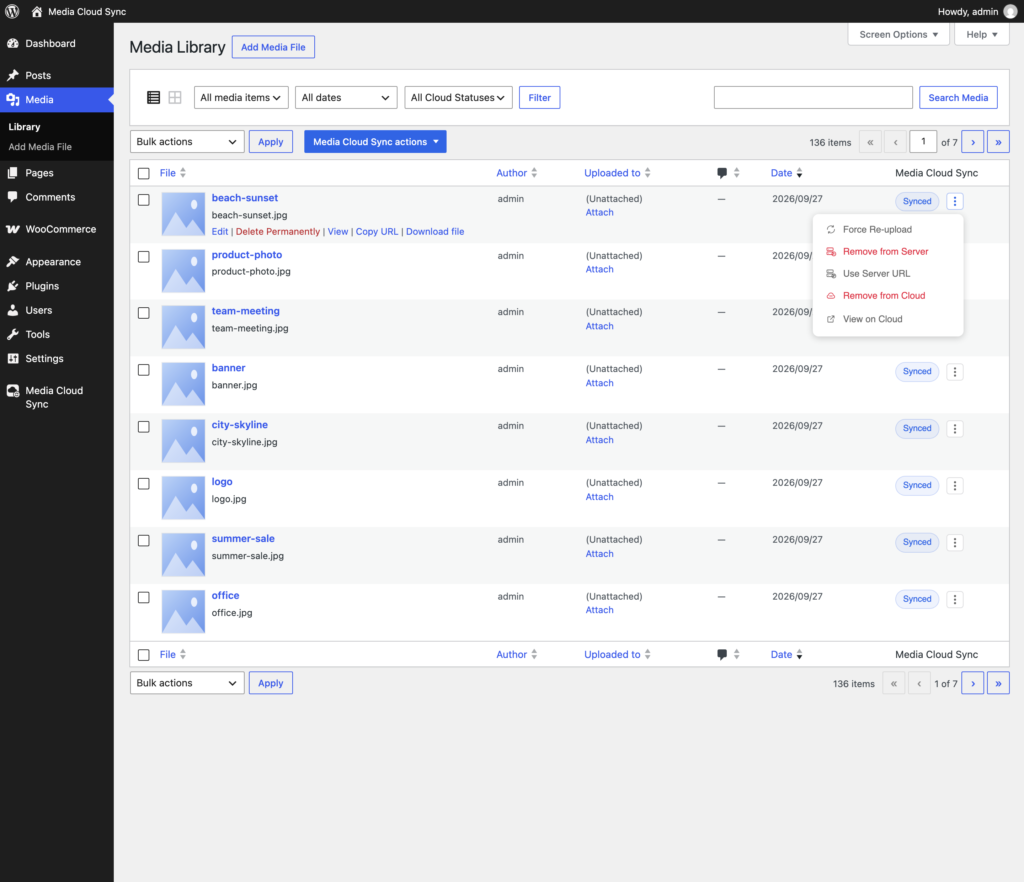
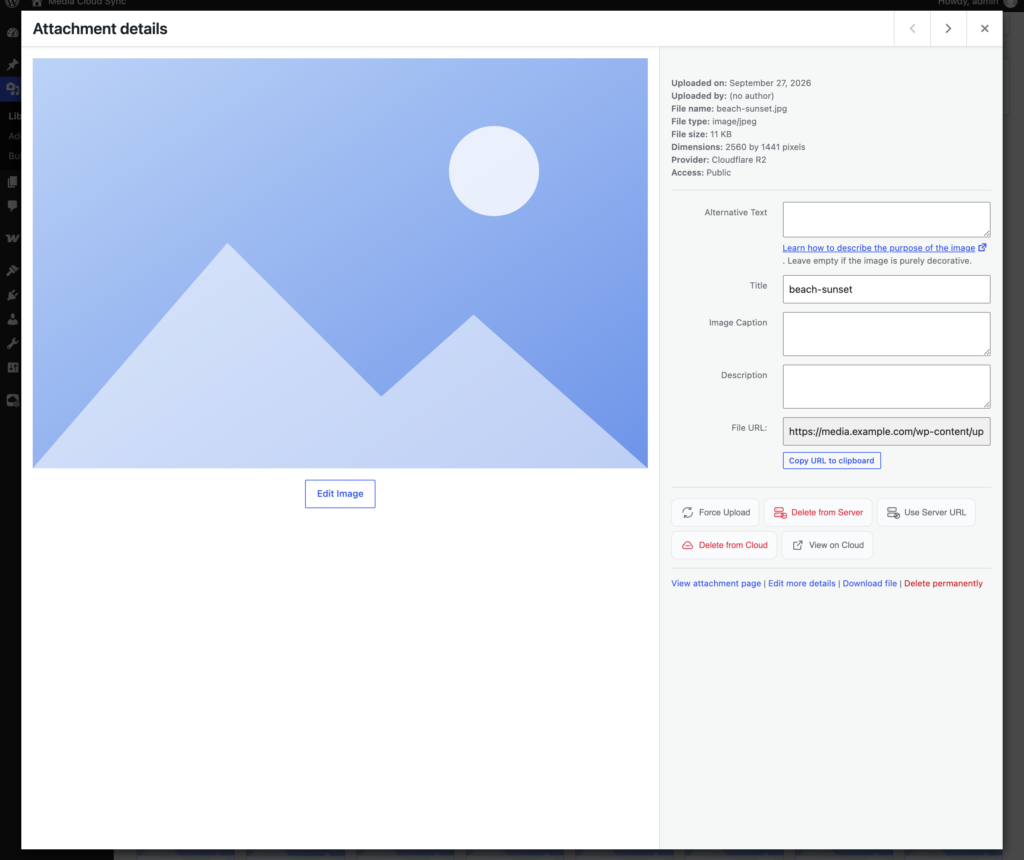
Only the actions that make sense for the item’s current state are shown. The attachment details use shorter button labels: Force Upload, Delete from Server, Restore to Server, Delete from Cloud, and Purge CDN are the same as Force Re-upload, Remove from Server, Restore from Cloud, Remove from Cloud, and Purge CDN Cache below. The details panel also shows the item’s Provider and Access (Public or Private).
| Action | Shown when | What it does |
|---|---|---|
| Sync to Cloud | Not synced | Uploads the file and all its image sizes to the bucket. |
| Force Re-upload | Synced | Uploads the file again, replacing the cloud copy. Use it after editing a file outside WordPress. |
| Remove from Server | Synced, and a local copy exists | Deletes the local copy to free disk space. It first checks that the cloud copy really exists and refuses if it can’t be verified. |
| Restore from Cloud | Synced, and no local copy exists | Downloads the file back to your server. The cloud copy is kept. |
| Remove from Cloud | Synced | Restores the file to your server first, checks every size was restored, then deletes the cloud copy. Nothing is deleted if the restore can’t be verified. |
| View on Cloud | Synced | Opens the file’s cloud or CDN URL in a new tab. |
| Use Server URL | Synced, served from cloud | Serves this one item from your server instead of the cloud, for example if a plugin needs the local URL. The file stays in the bucket. |
| Use Cloud URL | Synced, set to server URL | Switches the item back to cloud delivery. |
| Mark as Private | Synced, and Private Media is set up | Moves the file to the private path and serves it only through short-lived signed URLs. |
| Mark as Public | Item is private | Moves the file back to the public path. |
| Purge CDN Cache | Synced and public, and CDN Cache Purge is set up | Clears this item’s files from the CDN’s cache. |
Note: Remove from Server and Remove from Cloud are destructive and ask for confirmation first.
Bulk actions
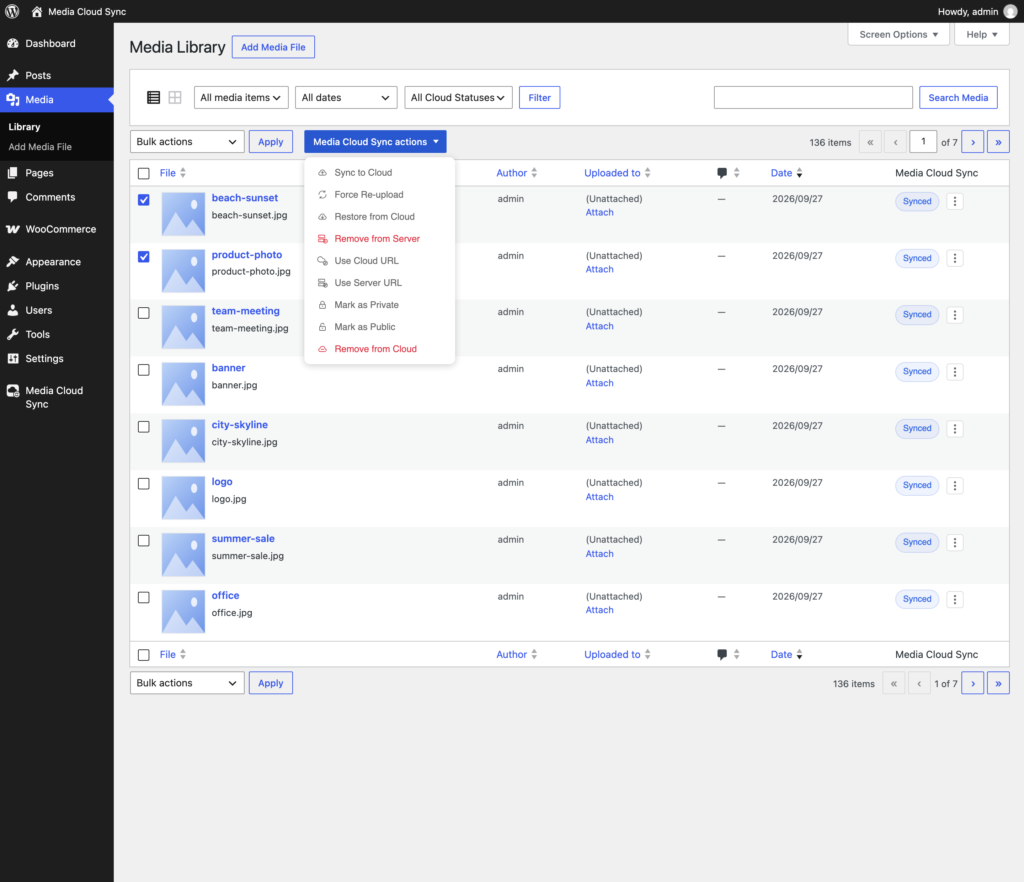
- In list view, tick the items you want, or tick the header checkbox to select the whole page.
- Open the Media Cloud Sync actions dropdown next to Bulk actions.
- Choose an action. It applies to every selected item where that action is valid; items it doesn’t apply to are skipped.
Tip: For hundreds or thousands of files, use the Dashboard’s bulk tools (Sync Media to Cloud, Restore, Move, and Remove tools). They run in the background and can be paused.