

CDN Cache PurgePRO
When a file is uploaded again under the same name, your CDN may keep serving its old copy. CDN Cache Purge clears that copy so visitors get the new file.
It works when media is delivered through Amazon CloudFront, Bunny.net, or Cloudflare, including a Cloudflare R2 custom domain. r2.dev addresses have no cache to purge. For other delivery options, the page says it isn’t available.
Open it from Tools → CDN Cache Purge. Your CDN domain must be set in Delivery settings, with Deliver Synced Media on.
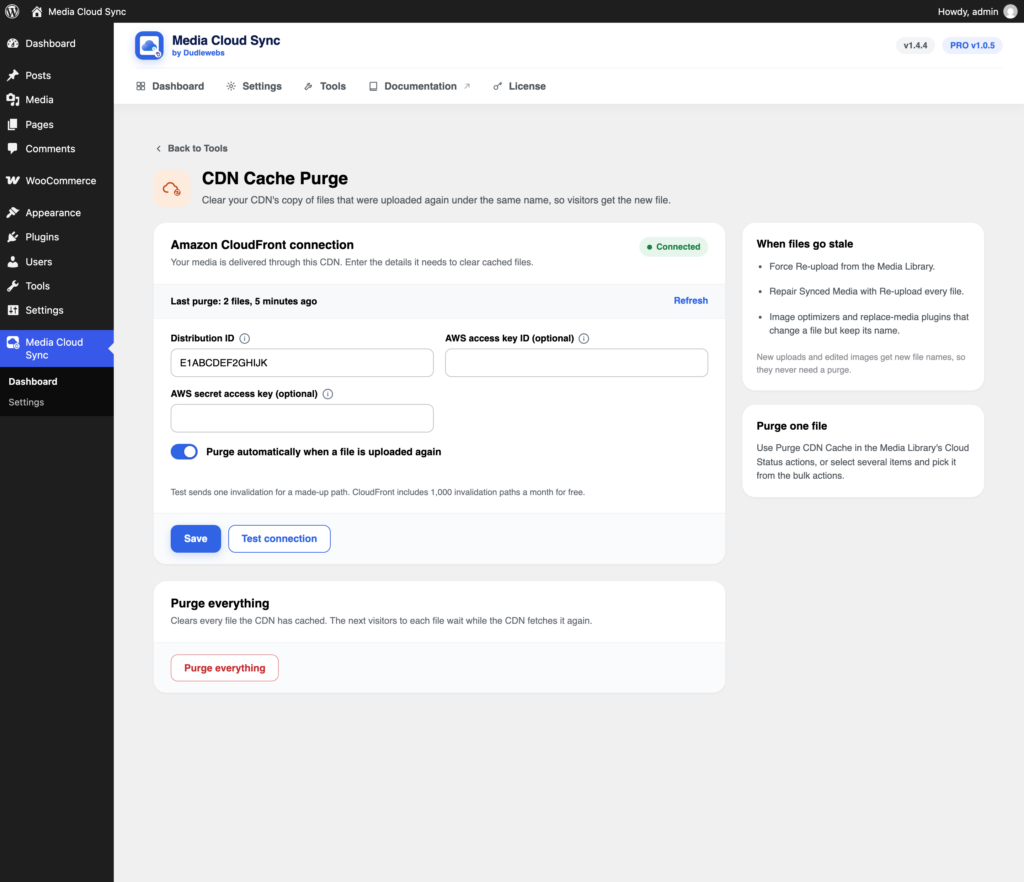
Connect your CDN
| CDN | Fields |
|---|---|
| Amazon CloudFront | Distribution ID, AWS access key ID, AWS secret access key. On Amazon S3 storage the keys are optional: leave them empty to use your S3 storage keys. |
| Bunny.net | Account API key (Account settings → API key). Pull Zone ID is only needed for Purge everything. |
| Cloudflare | Zone ID (your domain → Overview → API) and an API token with the Zone → Cache Purge permission for this zone. |
Click Save, then Test connection. The test changes nothing on your site: CloudFront gets one invalidation for a made-up path, and the others purge one made-up address. CloudFront includes 1,000 invalidation paths a month for free.
Saved secrets are never shown again. The field says “Saved, ends in XXXX. Leave empty to keep it.”
Purge automatically
With Purge automatically when a file is uploaded again on, these are purged for you:
- Force Re-upload from the Media Library.
- Repair Synced Media with Re-upload every file.
- Image optimizers and replace-media plugins that change a file but keep its name.
New uploads and edited images get new file names, so they never need a purge.
Purges are queued and sent in the background. A failed purge is tried again after 5, 15, and 30 minutes. A large CloudFront batch is sent as one folder wildcard to stay within its limits.
Purge one file
In Media → Library, use Purge CDN Cache in an item’s Media Cloud Sync menu, or select several items and pick it from the Media Cloud Sync actions dropdown. See Managing Media from the Media Library. Private files aren’t purged this way.
Purge everything
Purge everything clears every file the CDN has cached. The next visitors to each file wait while the CDN fetches it again, which can briefly slow pages and add bucket requests.
Warning: Cloudflare can’t purge only media on most plans, so this clears everything cached for the zone, including your site’s pages.
From the command line
wp mcs purge-cdn 123 456
wp mcs purge-cdn --all --yes
See WP-CLI Commands.