

Bulk Tools: Restore, Move, and RemovePRO
Media Cloud Sync Pro adds these jobs under Bulk tools on the Dashboard, for working on your whole library at once:
| Tool | Use it when you want to… |
|---|---|
| Restore Media to Server | Bring offloaded files back to your server, for example before deactivating the plugin or moving hosts. |
| Move Media to New Path | Reorganize files already in the bucket after changing the prefix, Year/Month, or versioning settings. |
| Remove Media from Cloud | Stop using cloud storage for your media and delete the cloud copies. |
| Remove Media from Server | Free server space by deleting the local copies of media that’s already synced. |
They all run like Sync Media to Cloud: the same choice of Ajax, Cron, or Mixed, Start / Pause / Resume / Stop controls, progress panel, and Errors table with Retry.
Restore Media to Server
Checks every file that’s synced to the cloud and downloads any that are missing from your server. Files that already exist locally are skipped. Cloud copies are not deleted.
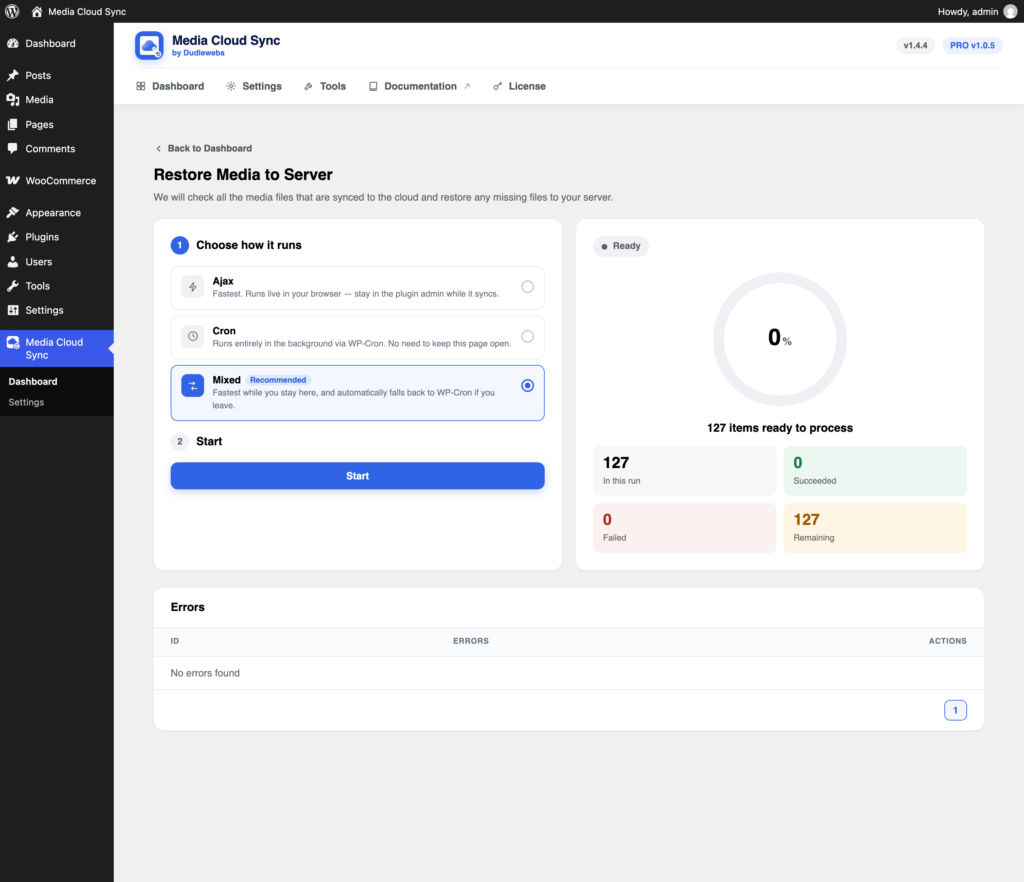
- Go to Media Cloud Sync → Dashboard → Restore Media to Server.
- Check that your server has enough free disk space for the files.
- Click Start.
Typical uses
- Before deactivating or uninstalling Media Cloud Sync, when Remove files from server was on.
- Before migrating your site to a host that will copy
wp-content/uploads.
Note: Restoring doesn’t change where media is served from. To serve from your server again, turn off Deliver Synced Media in Delivery Settings, or remove the files from the cloud.
Move Media to New Path
Changing Add Prefix to Bucket Path, Year/Month Structure, or Object versioning only affects new uploads. This tool moves files that are already in the bucket to match your current settings.
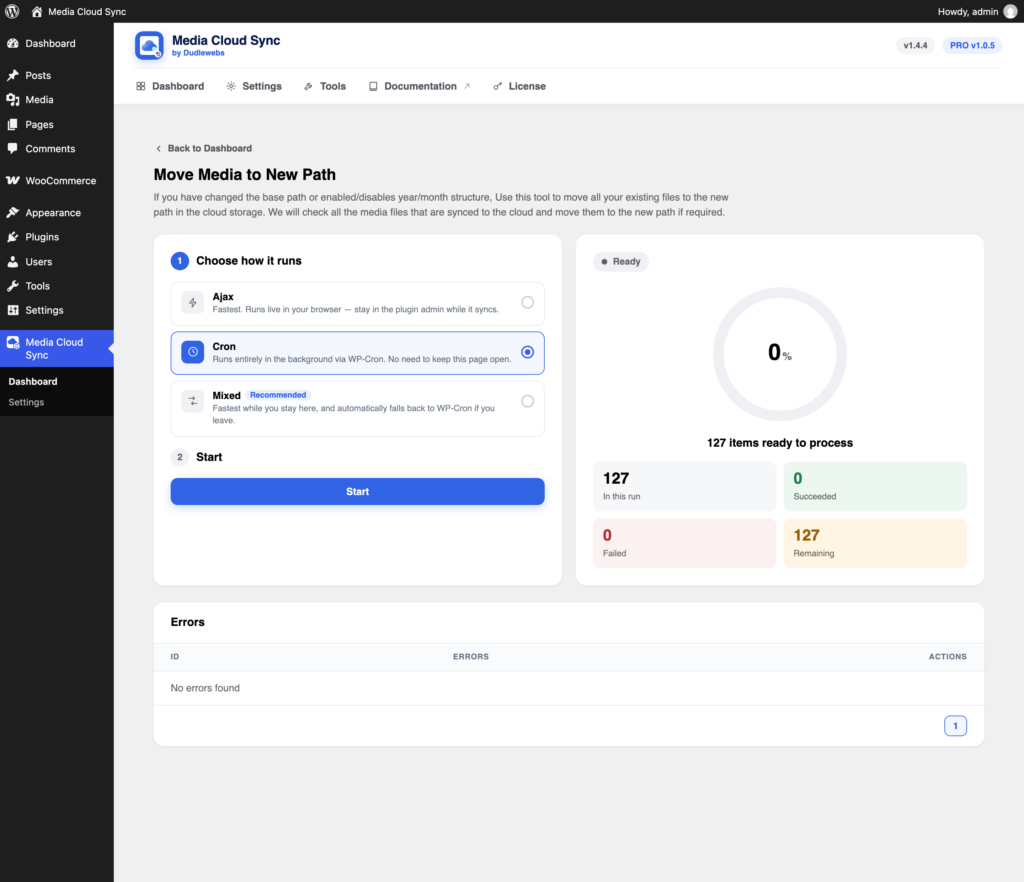
- Update and save your Storage settings.
- Go to Media Cloud Sync → Dashboard → Move Media to New Path.
- Click Start.
The plugin checks each synced file and moves it only if its path differs from what the current settings would give it. Media URLs update automatically once each file is moved.
Tip: If you serve media through a CDN, old URLs may stay cached for a while after moving. Purge the CDN cache once the job finishes.
Remove Media from Cloud
Restores your synced media to the server and then permanently deletes the cloud copies. Afterwards, media is served from your server again.
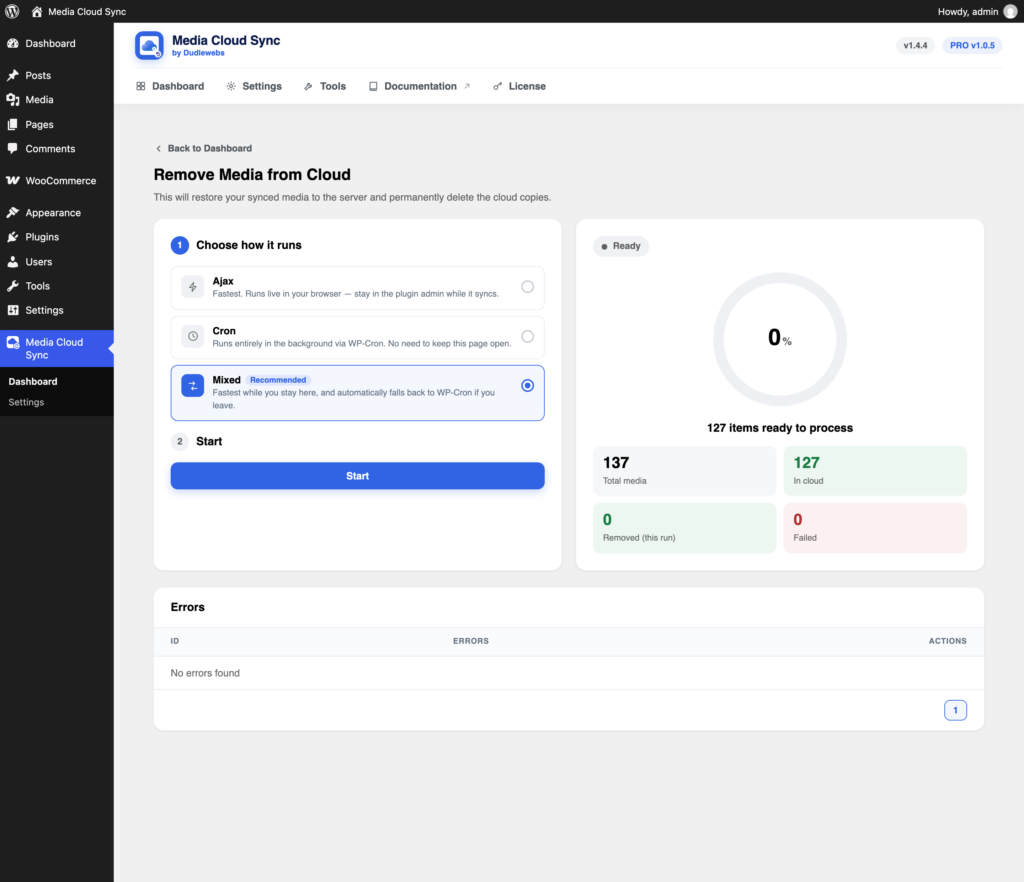
- Go to Media Cloud Sync → Dashboard → Remove Media from Cloud.
- Click Start. A confirmation dialog opens.
- Leave Restore files to the server before removing them from the cloud turned on (recommended).
- Off: files are deleted from the cloud without downloading a local copy first. Only do this if you’re sure every file still exists on your server.
- Click Remove from Cloud to begin.
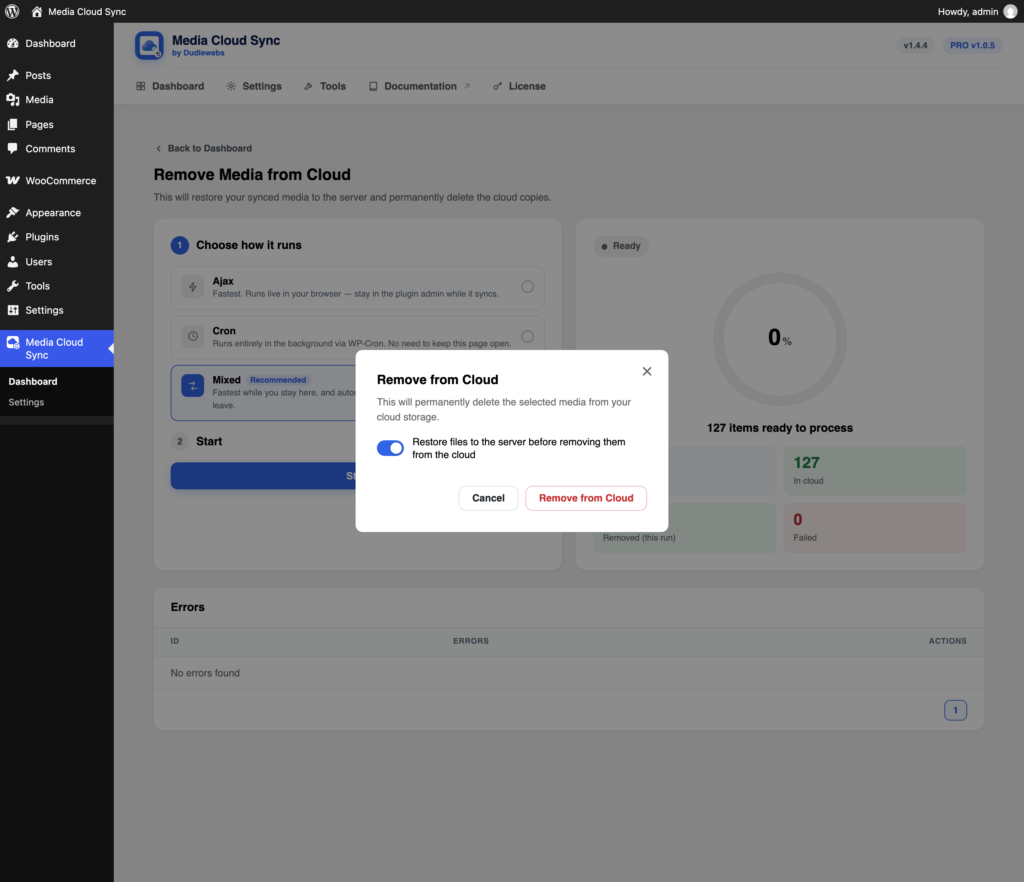
Warning: Cloud copies are permanently deleted. Back up your bucket first if you might need the files later.
To stop new uploads from going to the cloud afterwards, turn off Copy files to bucket in Storage settings.
Remove Media from Server
Remove files from server only applies to files as they’re uploaded. This job clears the local copies of media that’s already synced: all sizes, originals, and edit backups.
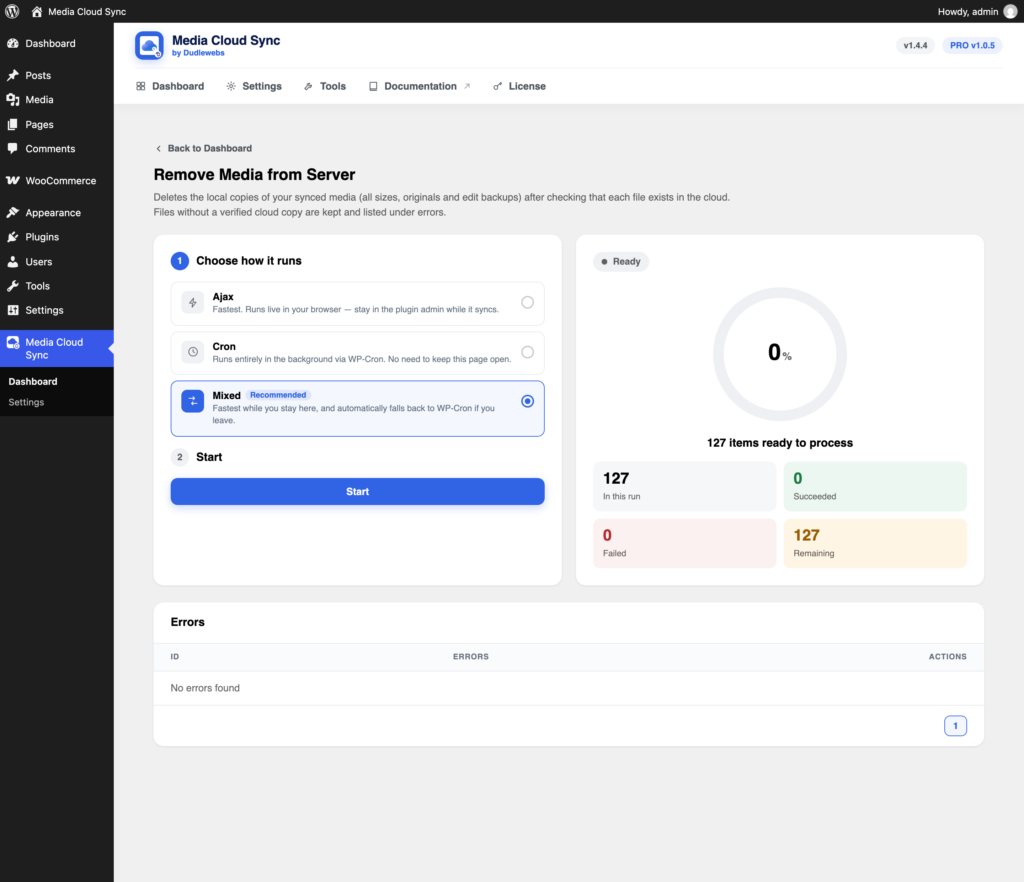
- Go to Media Cloud Sync → Dashboard → Remove Media from Server.
- Click Start, then confirm with Remove from Server.
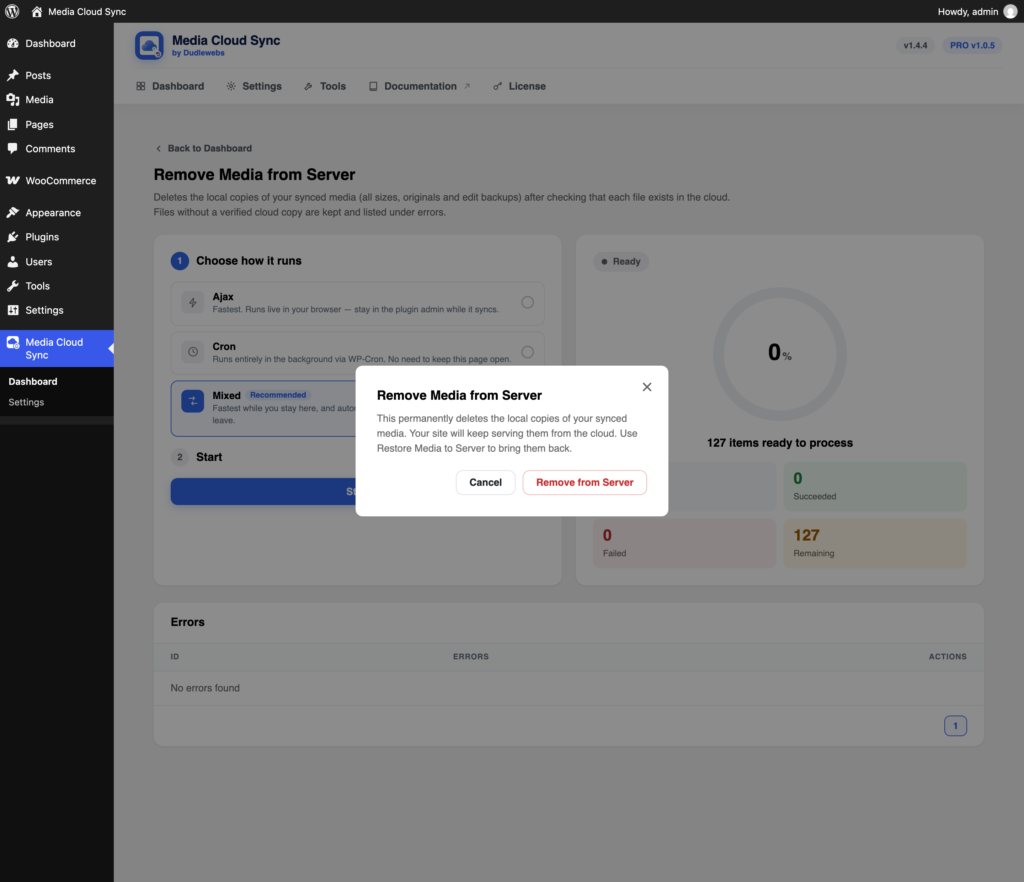
Each file is checked in the cloud first. Files without a verified cloud copy are kept and listed under Errors. Your site keeps serving the media from the cloud.
Warning: Local copies are permanently deleted. Use Restore Media to Server to bring them back.
Related
- Migrate Bucket to Bucket
- File Manager
- Managing Media from the Media Library (for a few files at a time)
- Tools