
Assets on CDNPRO
Assets on CDN serves your theme, plugin, and WordPress CSS, JS, fonts, and images from a CDN on visitor pages. Nothing is uploaded: the CDN fetches the files from your site.
Open it from Tools → Assets on CDN.
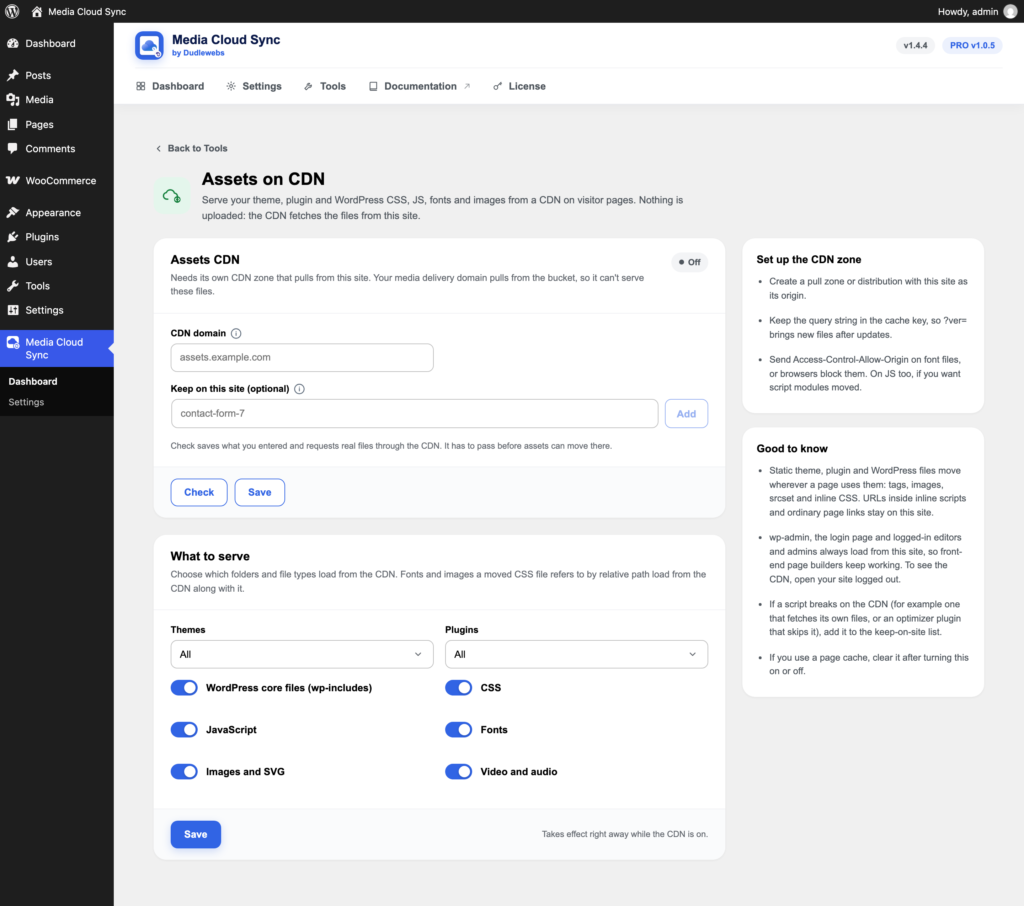
Step 1: Set up the CDN zone
This needs its own CDN zone that pulls from your site. Your media delivery domain pulls from the bucket, so it can’t serve these files. Any CDN that can pull from your site works.
- Create a pull zone or distribution with your site as its origin, served over HTTPS.
- Keep the query string in the cache key, so
?ver=brings new files after updates. - Send
Access-Control-Allow-Originon font files, or browsers block them. Add it to JS too if you want script modules moved.
Step 2: Check and turn on
- Enter the CDN domain, for example
assets.example.com. - Click Check. It saves what you entered and requests real files through the CDN.
- When it passes, click Turn on. If you use a page cache, clear it.
The check has to pass before assets can move. It shows these results:
| Result | What it means |
|---|---|
| File from the CDN | A theme or WordPress file loads through the domain. |
| Same as this site | The file matches your site’s copy. A difference doesn’t fail the check, since the CDN may be minifying it. |
| Keeps file versions | The CDN keeps ?ver= in its cache key, when this can be detected. |
| Fonts allowed | Browsers would be allowed to load fonts. |
| Script modules | Script modules only move if the CDN allows them. Otherwise they stay on your site. |
Step 3: Choose what to serve
The What to serve card takes effect right away while the CDN is on. Click Save after changing it.
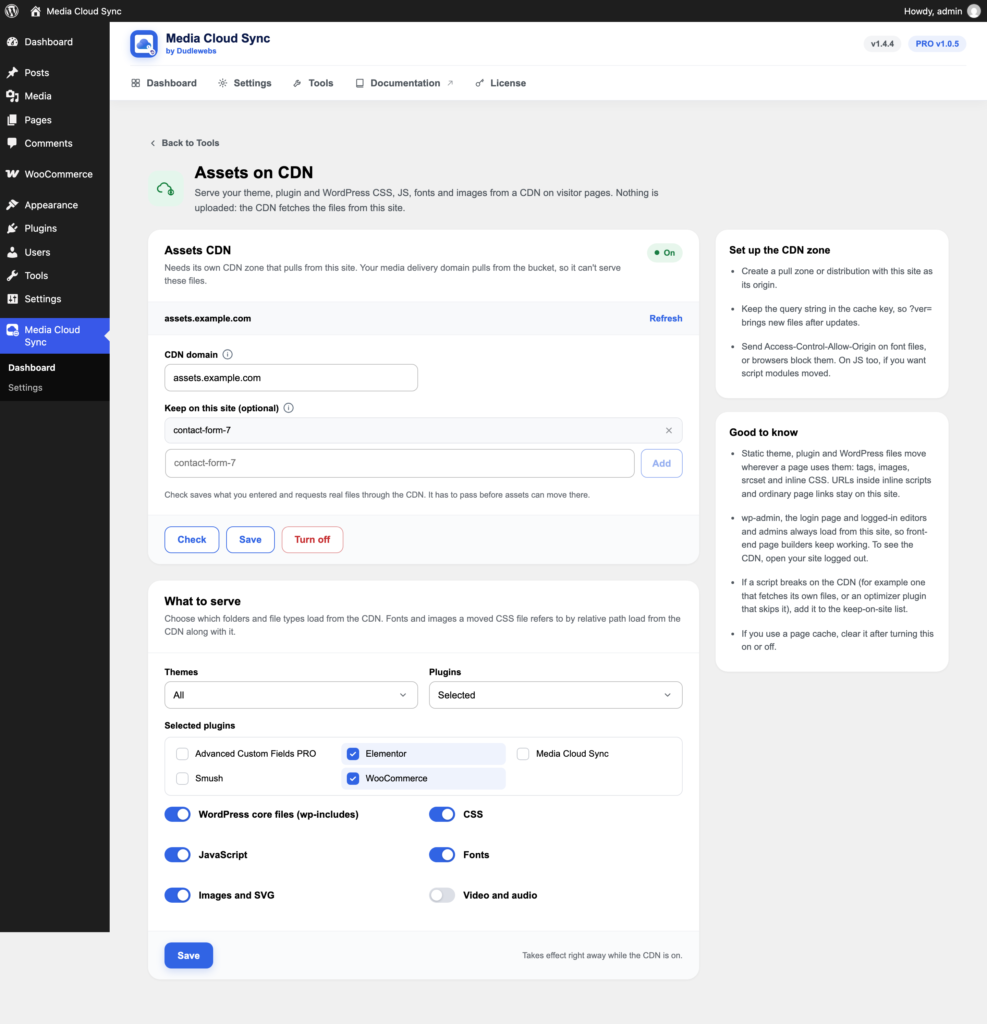
- Themes and Plugins: All, Selected (tick them in the list), or None.
- WordPress core files (wp-includes)
- File types: CSS, JavaScript, Fonts, Images and SVG, Video and audio.
Fonts and images a moved CSS file refers to by relative path load from the CDN along with it.
To keep something on your site, add a script or style handle, or part of a file path, under Keep on this site, one per row.
What moves and what stays
Moves, wherever a page uses them: enqueued files, tags, images, srcset, lazy-loading attributes, style attributes, and inline CSS.
Stays on your site:
- URLs inside inline scripts and JSON
- ordinary page links, iframes, comments, and text in
textarea,pre, andcodetags .phpaddresses and your uploads- tags with an integrity attribute
- anything on your keep-on-site list
wp-admin, the login page, and logged-in editors and admins always load from your site, so front-end page builders keep working. To see the CDN, open your site logged out.
If something breaks
If a script breaks on the CDN (for example one that fetches its own files, or an optimizer plugin that skips it), add it to the keep-on-site list. To stop altogether, click Turn off, and clear your page cache.