

Importing Existing Cloud MediaPRO
If your files are already in a bucket, you don’t need to upload them again. These two tools on the Tools page create Media Cloud Sync’s records for them.
| Your files got to the bucket through… | Use |
|---|---|
| Another offload plugin | Import from Other Plugins |
| A manual copy, rclone, a migration, or a previous setup | Import from Bucket |
Connect Media Cloud Sync to the same bucket first. Both tools work on the connected bucket.
Import from Other Plugins
Takes over media another offload plugin already moved to the cloud. Only the records are imported: nothing is uploaded again, and the other plugin’s data is not changed.
Supported plugins: WP Offload Media, Media Cloud, Offload Media – Cloud Storage, WP-Stateless, and Advanced Media Offloader.
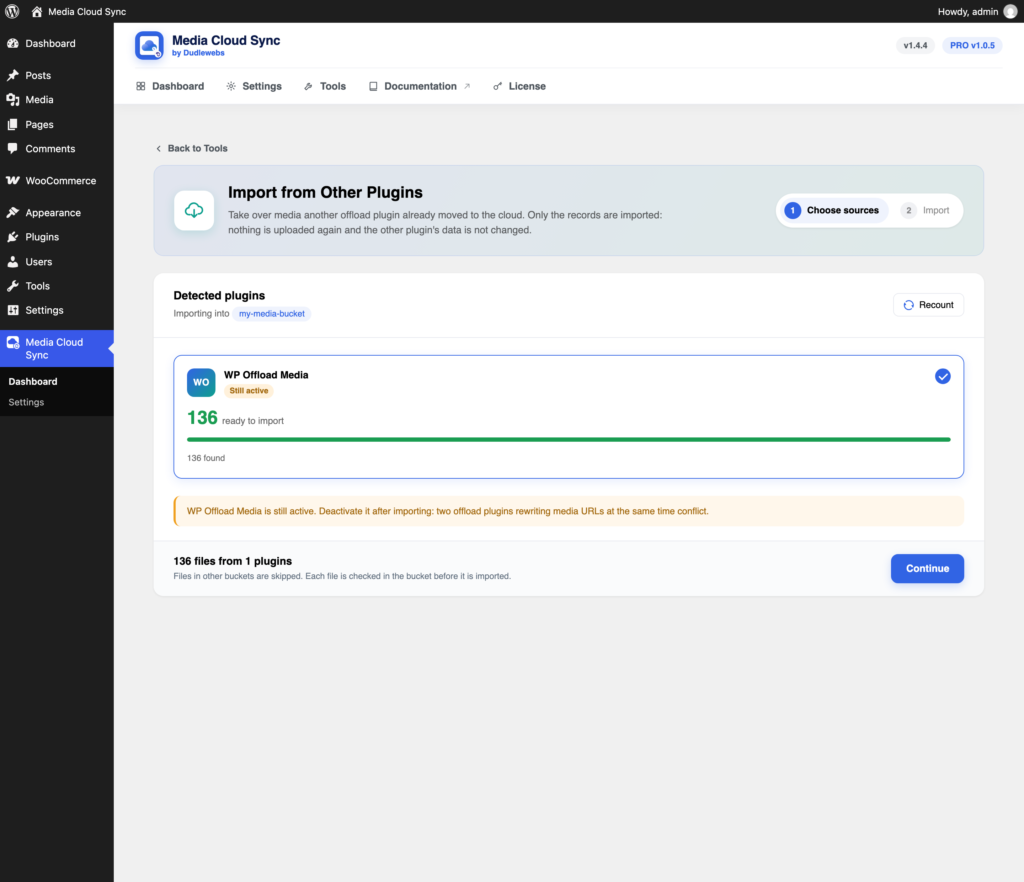
- Go to Tools → Import from Other Plugins.
- Under Detected plugins, check the sources to import from. Each shows how many files are ready. Click Recount if the numbers look old.
- Click Continue, then start the job.
Each file is checked in the bucket before it’s imported. Files in other buckets, or missing from the connected bucket, are skipped and listed under Errors.
Warning: If the other plugin is still active, deactivate it after importing. Two offload plugins rewriting media URLs at the same time conflict.
Import from Bucket
For media you copied to the bucket yourself. Records are created for files found where Media Cloud Sync would store them, without uploading them again.
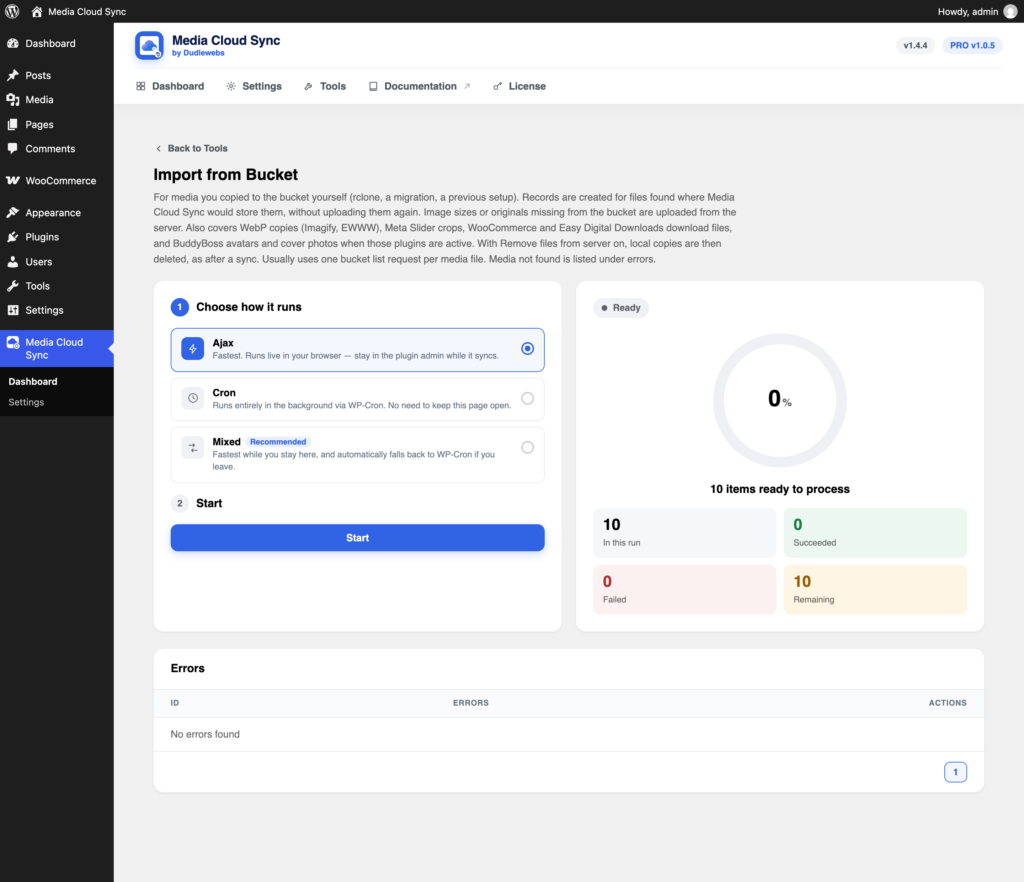
- Check your Storage settings match where the files are: prefix and Year/Month.
- Go to Tools → Import from Bucket and click Start.
- If the files are under a different folder than your settings use, enter it under Folder in bucket (optional), for example
uploads. Year/month folders still follow your settings. - Click Start in the dialog.

What happens to each media item:
- Main file found: a record is created. Image sizes or originals missing from the bucket are uploaded from the server.
- Main file not found: it’s listed under Errors, and you can sync it normally later.
- Remove files from server on: local copies are then deleted, as after a sync.
It also covers WebP copies (Imagify, EWWW), Meta Slider crops, WooCommerce and Easy Digital Downloads download files, and BuddyBoss avatars and cover photos when those plugins are active.
It usually uses one bucket list request per media file.
Afterwards
Imported media counts as synced on the Dashboard, so Sync Media to Cloud only uploads what’s left. Check a few pages to confirm images load from the cloud.