

Bucket CORSPRO
Browsers only load some files from another domain if the bucket allows it. Bucket CORS adds that permission for you, so fonts, SVGs, and video from your bucket work on your site’s pages. Ordinary images in pages don’t need it.
Open it from Tools → Bucket CORS.
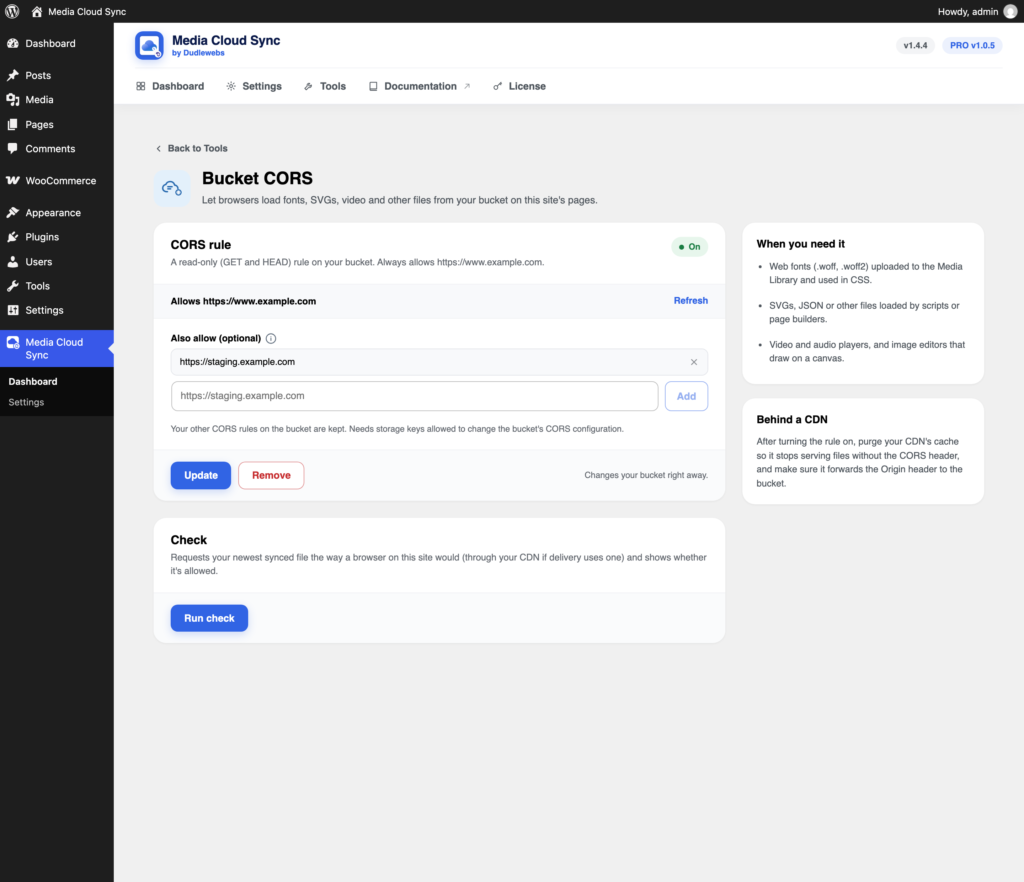
When you need it
- Web fonts (
.woff,.woff2) uploaded to the Media Library and used in CSS. - SVGs, JSON, or other files loaded by scripts or page builders.
- Video and audio players, and image editors that draw on a canvas.
Turning it on
- Optionally, add other sites that show your media under Also allow, one per row, such as a staging site. Add
*to allow every site. - Click Turn on.
This adds a read-only (GET and HEAD) rule to your bucket that always allows your own site. Your other CORS rules on the bucket are kept. It changes your bucket right away, and needs storage keys allowed to change the bucket’s CORS configuration.
Use Update after changing the list, and Remove to take the rule off. If your site’s address changes, the badge shows Needs update.
Checking it
Click Run check. It requests your newest synced file the way a browser on your site would, through your CDN if delivery uses one, and shows whether it’s allowed.
Behind a CDN
After turning the rule on, purge your CDN’s cache so it stops serving files without the CORS header, and make sure it forwards the Origin header to the bucket.