
Configure: S3-Compatible Object Storage
Many storage providers offer an API compatible with Amazon S3, for example Wasabi, Backblaze B2, Linode/Akamai Object Storage, Vultr Object Storage, Scaleway, IDrive e2, Contabo, Oracle Cloud, Storj, and self-hosted MinIO or Ceph. Media Cloud Sync works with any of them through the S3 Compatible option.
What is S3-compatible storage?
S3-compatible services implement the same API as Amazon S3, so one connection method works across all of them. You only need your provider’s endpoint URL and a pair of access keys; the rest of the setup is the same for every provider.
Using Cloudflare R2 or DigitalOcean Spaces? They have their own provider options with extra checks. Use the Cloudflare R2 or DigitalOcean Spaces guide instead.
You’ll need: an account with your provider, an existing bucket, and Media Cloud Sync installed and activated (installation guide).
Step 1: Collect the details from your provider
Get these four values from your provider’s dashboard:
| Value | Example | Where to find it |
|---|---|---|
| Storage Endpoint | https://s3.eu-central-1.wasabisys.com | Your provider’s “S3 endpoint” or “S3 API URL” for your bucket’s region. See Common endpoint URLs |
| Access Key | AKIA… / 0051a2… | Access keys / application keys section |
| Secret Key | wJalr… | Shown once when you create the key |
| Region | eu-central-1 | Usually part of the endpoint; optional for some providers |
Also create a bucket in your provider’s dashboard first. The wizard can’t create buckets on S3-compatible services.
Make the bucket publicly readable if you’ll serve media straight from it. If you deliver through a CDN, set up the CDN’s access to the bucket instead.
Step 2: Choose S3 Compatible and name it
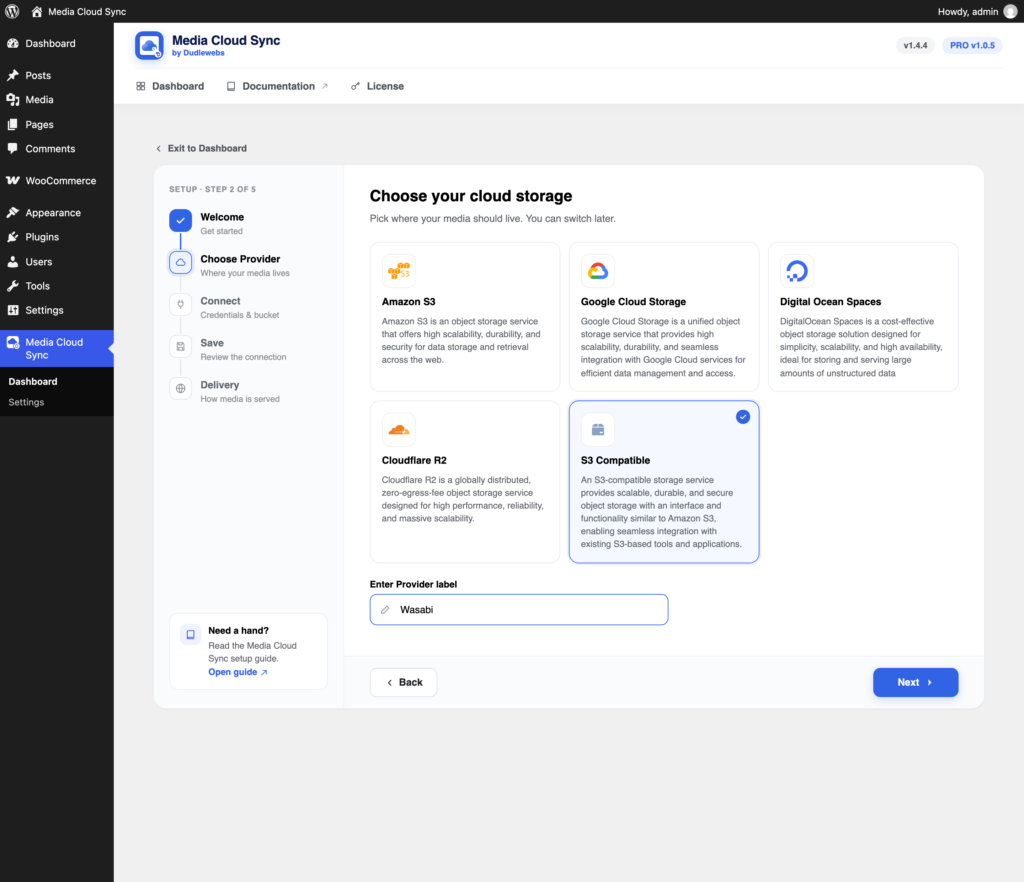
- Go to Media Cloud Sync → Dashboard, click Configure, then Get started. (New to the wizard? See Connecting Your Cloud Storage.)
- Select S3 Compatible.
- Enter a Provider label, such as “Wasabi” or “Backblaze B2”. This name appears throughout the plugin.
- Click Next.
Step 3: Enter credentials
Choose where to keep your credentials:
- Use wp-config.php Constant (recommended; see Storing Credentials in wp-config.php):
define( 'WPMCS_CONFIG', ['endpoint' => 'https://s3.eu-central-1.wasabisys.com','access_key' => 'YOUR_ACCESS_KEY','secret_key' => 'YOUR_SECRET_KEY','region' => 'eu-central-1'] ); - Store in Database: enter Storage Endpoint, Access Key, Secret Key, and Region.
The endpoint must be a full URL starting with https:// (or http://) and use a domain name, such as https://minio.example.com:9000. Bare IP addresses and localhost aren’t accepted.
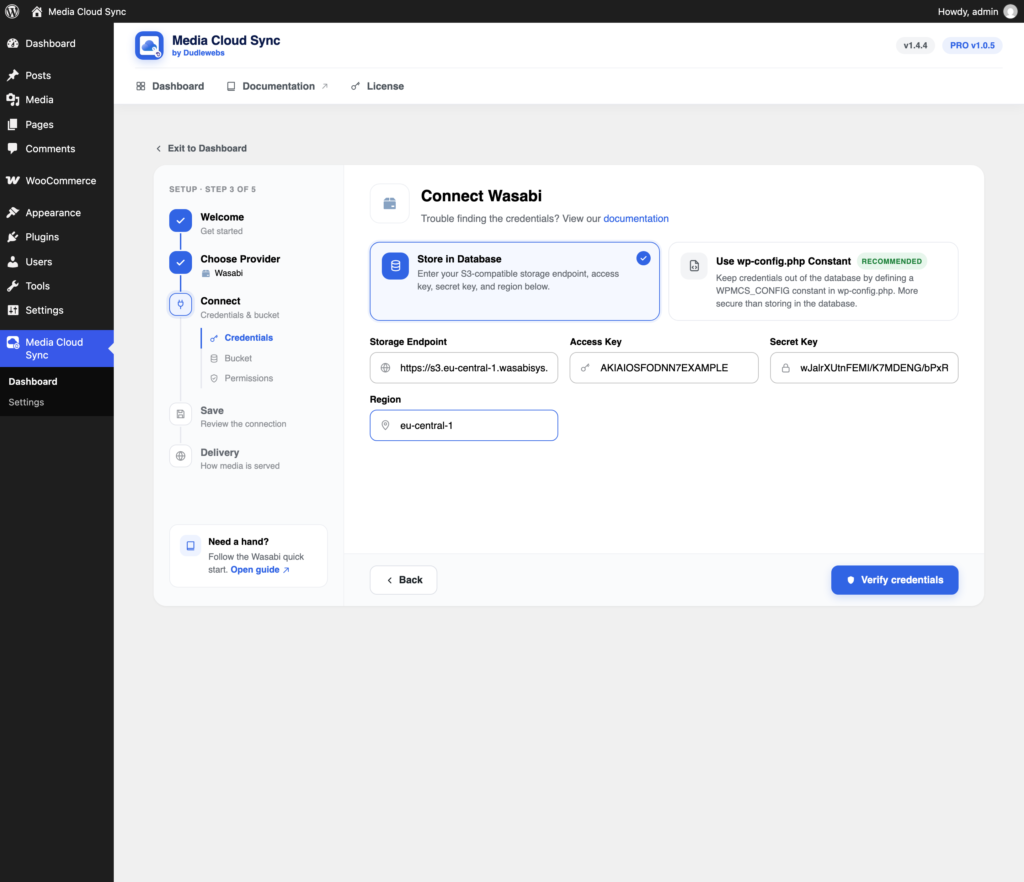
Click Verify credentials.
Step 4: Enter the bucket name
Type the name of the bucket you created in Step 1 and click Verify bucket. The plugin checks that it can read, write, and delete in that bucket. If a check fails, see Provider Permissions and Troubleshooting.

Click Save and continue.
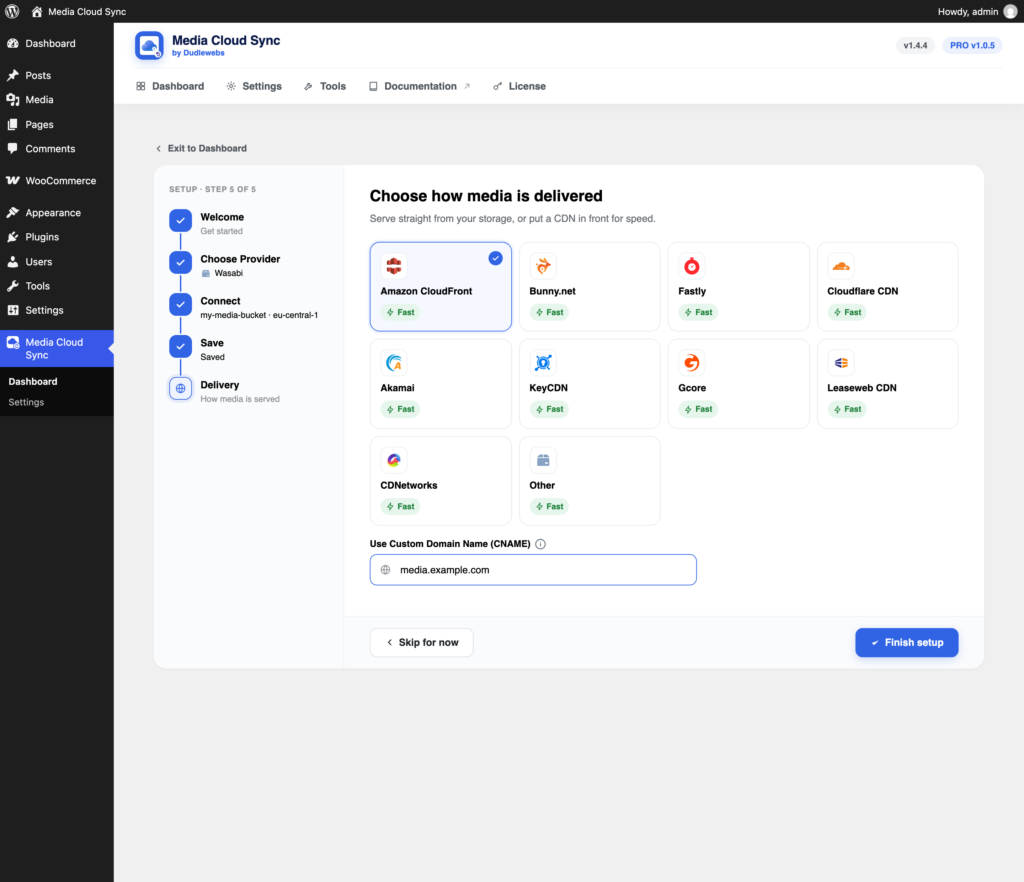
Step 5: Choose how media is delivered
- Your S3-compatible provider (the default): serves files from the endpoint URL.
- A CDN or Other: enter your CDN or custom domain under Use Custom Domain Name (CNAME). See Delivery Settings and CDN, or a CDN guide such as Cloudflare, Bunny.net, or Other CDNs and custom domains.
Click Finish setup, then use Recheck on the Delivery card in Settings to confirm files can be read publicly (Checking delivery).
Common endpoint URLs
Use the endpoint for the region your bucket is in. Some providers show an account-specific endpoint in their dashboard; if yours differs from this list, use the one from your dashboard.
| Provider | Region | Storage Endpoint |
|---|---|---|
| Wasabi | US East 1 | https://s3.wasabisys.com |
| US East 2 | https://s3.us-east-2.wasabisys.com | |
| US West 1 | https://s3.us-west-1.wasabisys.com | |
| EU Central 1 | https://s3.eu-central-1.wasabisys.com | |
| AP South 1 (India) | https://s3.ap-south-1.wasabisys.com | |
| AP Southeast 1 | https://s3.ap-southeast-1.wasabisys.com | |
| AP Northeast 1 | https://s3.ap-northeast-1.wasabisys.com | |
| Backblaze B2 | Your bucket’s region | https://s3.REGION.backblazeb2.com, e.g. https://s3.us-west-004.backblazeb2.com |
| Scaleway | France (FR-PAR) | https://s3.fr-par.scw.cloud |
| Netherlands (NL-AMS) | https://s3.nl-ams.scw.cloud | |
| Poland (PL-WAW) | https://s3.pl-waw.scw.cloud | |
| Linode / Akamai | US East (Newark) | https://us-east-1.linodeobjects.com |
| US Central (Dallas) | https://us-central-1.linodeobjects.com | |
| EU Central (Frankfurt) | https://eu-central-1.linodeobjects.com | |
| AP South (Mumbai) | https://ap-south-1.linodeobjects.com | |
| IDrive e2 | US East | https://s3.us-east-1.idrivee2-22.com |
| US West | https://s3.us-west-1.idrivee2-22.com | |
| EU Central | https://s3.eu-central-1.idrivee2-22.com | |
| Oracle Cloud (OCI) | Your region | https://NAMESPACE.compat.objectstorage.REGION.oraclecloud.com |
| Storj | Global (S3 gateway) | https://gateway.storjshare.io |
| MinIO (self-hosted) | Your server | https://minio.example.com:9000 |
| Ceph (self-hosted) | Your server | https://ceph.example.com:7480 |
| OpenStack Swift | Your server | The URL of your S3 gateway (s3api) |
Endpoint format: the endpoint must start with
https://(orhttp://), use a domain name (an optional:portis fine), and be at most 100 characters.localhostand bare IP addresses aren’t accepted, so give a self-hosted server a domain name. The plugin always connects using path-style addressing, so for Oracle Cloud use the path-stylecompatendpoint shown above, not the virtual-hosted one.
Provider notes
In every case: files must be readable by visitors, either through a public bucket or through your CDN. The wizard can’t make the bucket public for you, because uploaded files don’t carry a public ACL.
Wasabi
- Endpoint: use your bucket’s region, such as
https://s3.eu-central-1.wasabisys.com. See Wasabi’s service URLs. - Public access: Wasabi doesn’t allow public files on trial accounts, and its docs say accounts created after March 13, 2023 can’t turn on public access from the Console or CLI. Contact Wasabi support, or deliver through a CDN that can authenticate to the bucket (Other CDNs and custom domains). See Making files public in a trial account and Bucket policies.
Backblaze B2
- Endpoint: shown next to your bucket on the Buckets page, as
https://s3.REGION.backblazeb2.com. - Keys: create an Application Key. The master key doesn’t work with the S3 API. The key ID is your Access Key, and the application key is your Secret Key.
- Limited to one bucket? Turn on Allow List All Bucket Names on the key. See Getting started with the S3 API.
- Public access: set the bucket’s privacy to Public.
MinIO and self-hosted
Give the server a domain name. The endpoint must be reachable from your WordPress server, and from visitors’ browsers if you serve files from it. Set the bucket’s anonymous access to allow downloads.
Others
Linode/Akamai, Vultr, Scaleway, IDrive e2, Contabo, Oracle Cloud, Storj, and Ceph work the same way: find the S3 endpoint and region for your bucket, create an access key with read, write, and delete on it (Provider Permissions), and make the bucket publicly readable in your provider’s panel.
Note: Private Media
PROisn’t available for S3-compatible providers.
If your provider doesn’t work with these steps, contact us through dudlewebs.com and we’ll look into it.